

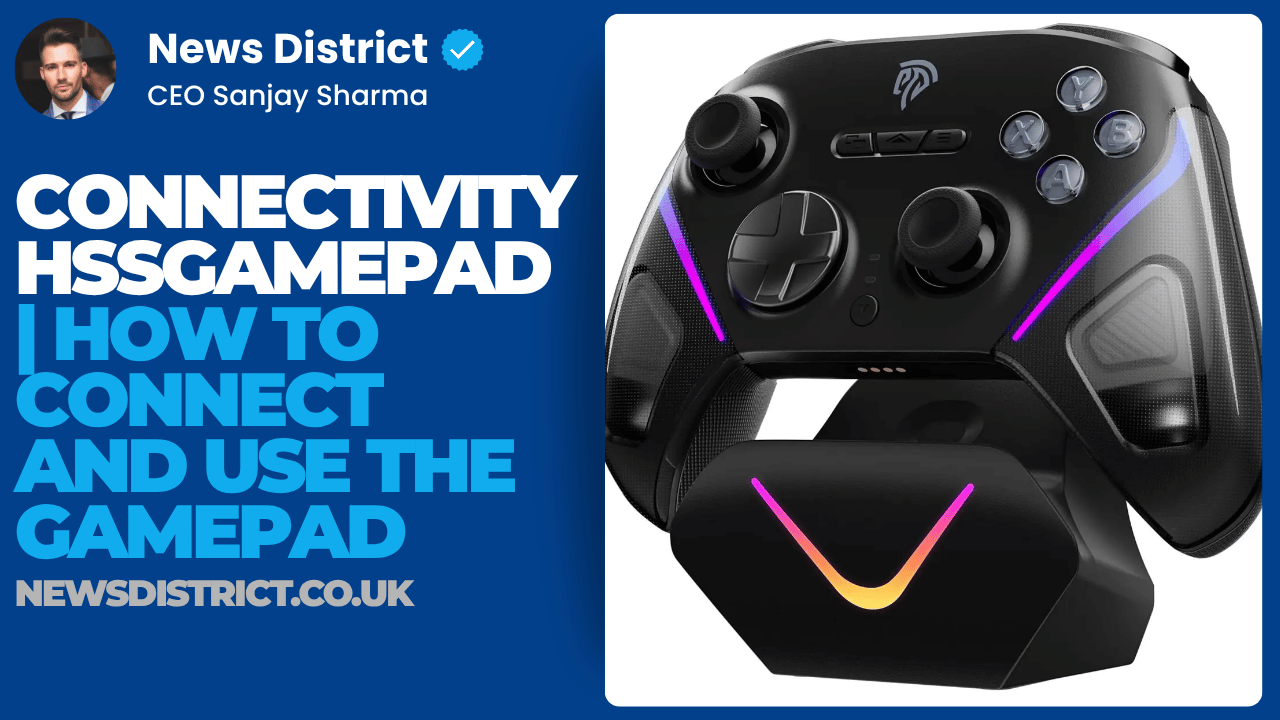
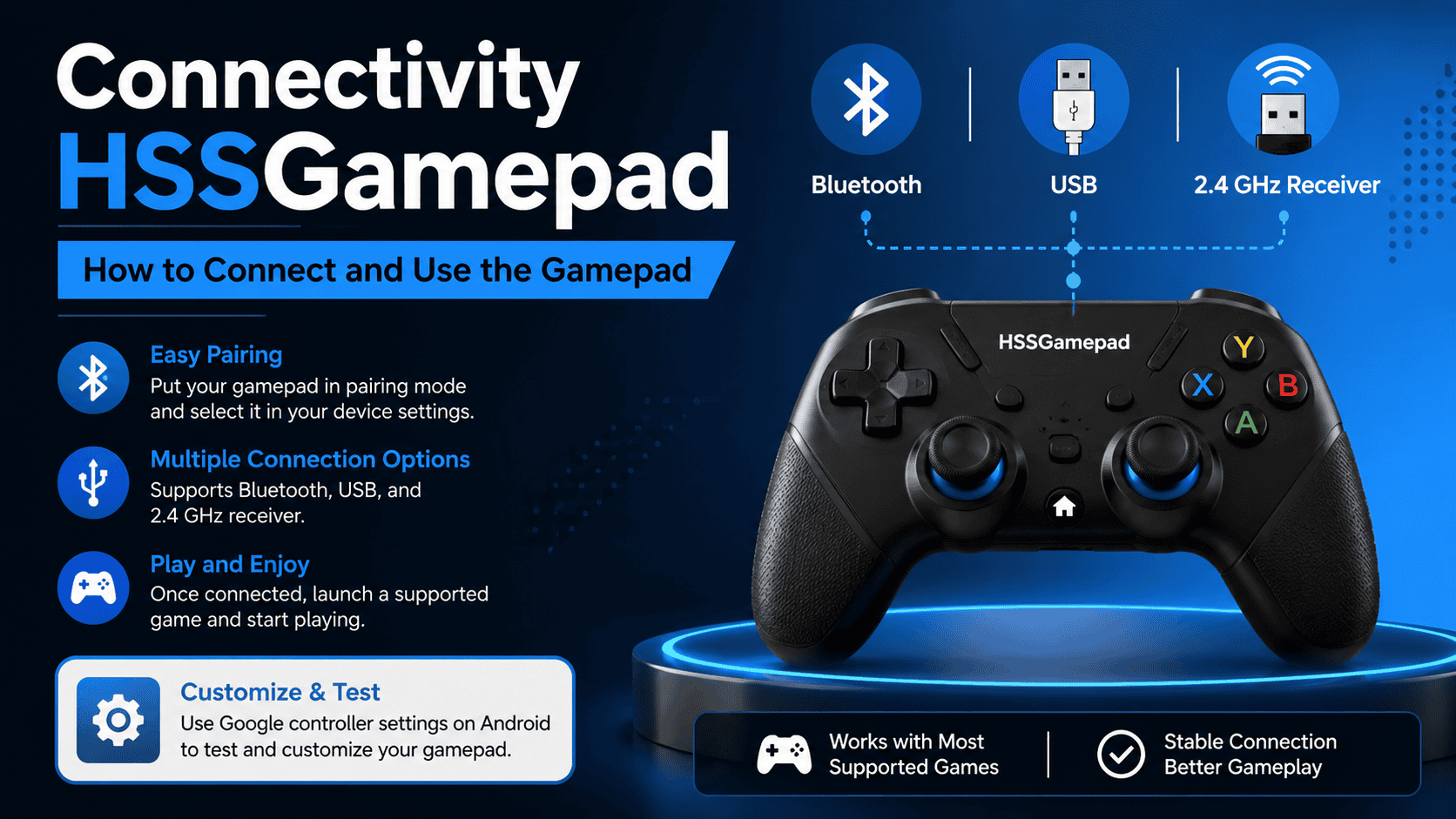
HSSGamepad connects by putting the controller in pairing mode, then selecting it from your device settings. If your model supports Bluetooth, USB, or a 2.4 GHz receiver, the setup flow is still the same: make the controller discoverable, connect it, then test it in a supported game.
After it is paired, most games that support controllers can use it right away. On Android, Google also provides controller settings that let you review and customize connected game controllers.
What HSSGamepad Usually Supports
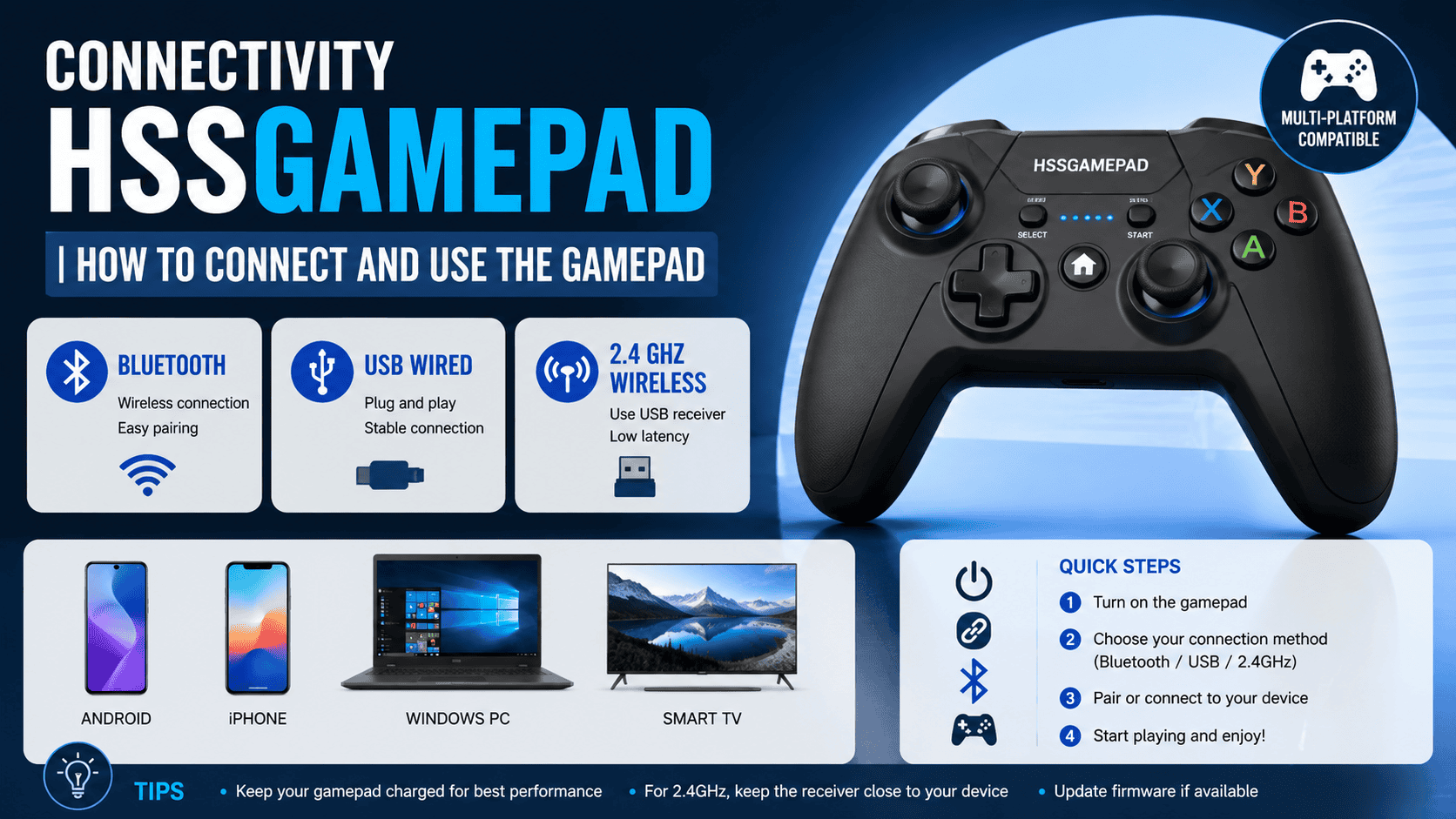
Current online guides that describe HSSGamepad commonly list three connection methods: Bluetooth, USB wired, and 2.4 GHz wireless. Those same guides describe it as a multi platform controller for devices such as Android phones, iPhones, Windows PCs, and smart TVs.
That means the exact setup depends on the model you have. Some versions rely on Bluetooth only, while others include a cable or USB receiver for a more stable connection. When the manual gives a mode button or pairing button, use that label first.
How to Connect HSSGamepad on Android
- Turn on the controller and charge it first if needed. Google says a wireless game controller should be in pairing mode before you add it from Android settings.
- Put the gamepad into pairing mode. On many Bluetooth accessories, this means holding the pairing button until the light starts flashing. The exact button depends on the controller manual.
- Open Settings on your Android phone, tap Connected devices, then tap Pair new device. Choose the controller name from the list when it appears.
- Open a game that supports controllers and test the buttons. Google also lets you open game controller settings on Android to review the connected controller and adjust supported settings.
How to Connect HSSGamepad on iPhone or iPad
- Put the controller into discovery mode using its manual. Apple says a Bluetooth accessory must be discoverable before it can appear in the device list.
- On your iPhone or iPad, go to Settings, then Bluetooth, and turn Bluetooth on. When the controller appears, tap its name to pair it.
- If a PIN or passcode appears, enter it. Apple notes that some Bluetooth accessories require a code during pairing.
- Open a game that supports a controller and check whether the input works. If the controller is paired but still not responding, Apple recommends checking that the accessory is on, fully charged, and close to the device.
How to Connect HSSGamepad on Windows
- Turn on Bluetooth in Windows and make sure the PC supports Bluetooth. Microsoft says Bluetooth must be on, and the device must be charged, in range, and discoverable.
- Open Settings, go to Bluetooth and devices, then select Add device. Choose Bluetooth, then click the gamepad name when it appears.
- If the controller does not show up, check the PC manufacturer’s Bluetooth driver support page and install the latest Bluetooth driver. Microsoft says driver updates can help when Bluetooth setup or connectivity fails.
- After pairing, keep the controller and PC in range. Microsoft notes that Bluetooth devices automatically reconnect when they are back within range.
How to Use HSSGamepad in Games
Use the gamepad inside games that already support controllers. In many Android games, the controller works once it is connected, and Android also provides a controller settings area for supported customization.
If a game does not respond, check the game’s control menu first. Some games need controller support switched on inside the game settings before button input will work correctly. That is a game setting issue, not always a connection problem.
If your HSSGamepad model supports wired play, USB is often the safest choice for steady input. Current HSSGamepad guides also describe 2.4 GHz wireless as a low latency option for users who want wireless play without relying on Bluetooth.
Common HSSGamepad Problems and Fixes
If the controller does not appear in Bluetooth lists, first make sure it is in pairing mode and close to the device. Microsoft says Bluetooth devices must be discoverable, charged, and in range, while Google gives the same advice for Android pairing.
If it pairs but then disconnects, turn Bluetooth off and on again, then try pairing one more time. Microsoft specifically recommends switching Bluetooth off, waiting a few seconds, and turning it back on when troubleshooting connection problems.
If the controller worked before but no longer connects, remove it from the saved device list and pair it again from scratch. Apple says you can forget the accessory and add it again any time, which often clears stale pairing data.
If you are using Windows and the signal feels weak or unstable, keep the controller away from crowded USB 3.0 ports and other wireless devices. Microsoft notes that nearby USB 3.0 hardware can interfere with Bluetooth in some cases.
Quick Setup Check
Make sure the controller is charged, in pairing mode, and close to the device. Then confirm that Bluetooth is on, the controller name appears in settings, and the game you opened actually supports controller input. Those simple checks solve most connection problems.
LogicalShout General News | Real-Time Headlines & Global Coverage
LogicalShout General News provides real-time headlines, consumer technology updates, product reviews, and software walkthroughs using simple English for daily readers.

Frequently Asked Questions
Why is HSSGamepad not showing up?
Most of the time, the controller is not in discoverable mode, the battery is low, or the device is too far away. Microsoft and Apple both say the accessory must be powered on, charged, in range, and discoverable before pairing will work.
What is the most stable connection type?
In current HSSGamepad guides, wired USB is described as the most stable option, while 2.4 GHz wireless is presented as a strong low latency choice. Bluetooth is convenient, but it usually depends more on distance and interference.
Can HSSGamepad be used on Android?
Yes. Google supports wired and wireless game controllers on Android, and its controller settings page lets you pair a wireless controller from Connected devices, then review controller settings after connection.
