

[email protected] is an automated Gmail address used for email delivery notifications. It commonly sends a bounce message when an email cannot be delivered to the intended recipient.
A message from this address usually means there is a problem with the email delivery, such as an incorrect address, a full inbox, a blocked message, or a temporary server problem.
What Is [email protected]?
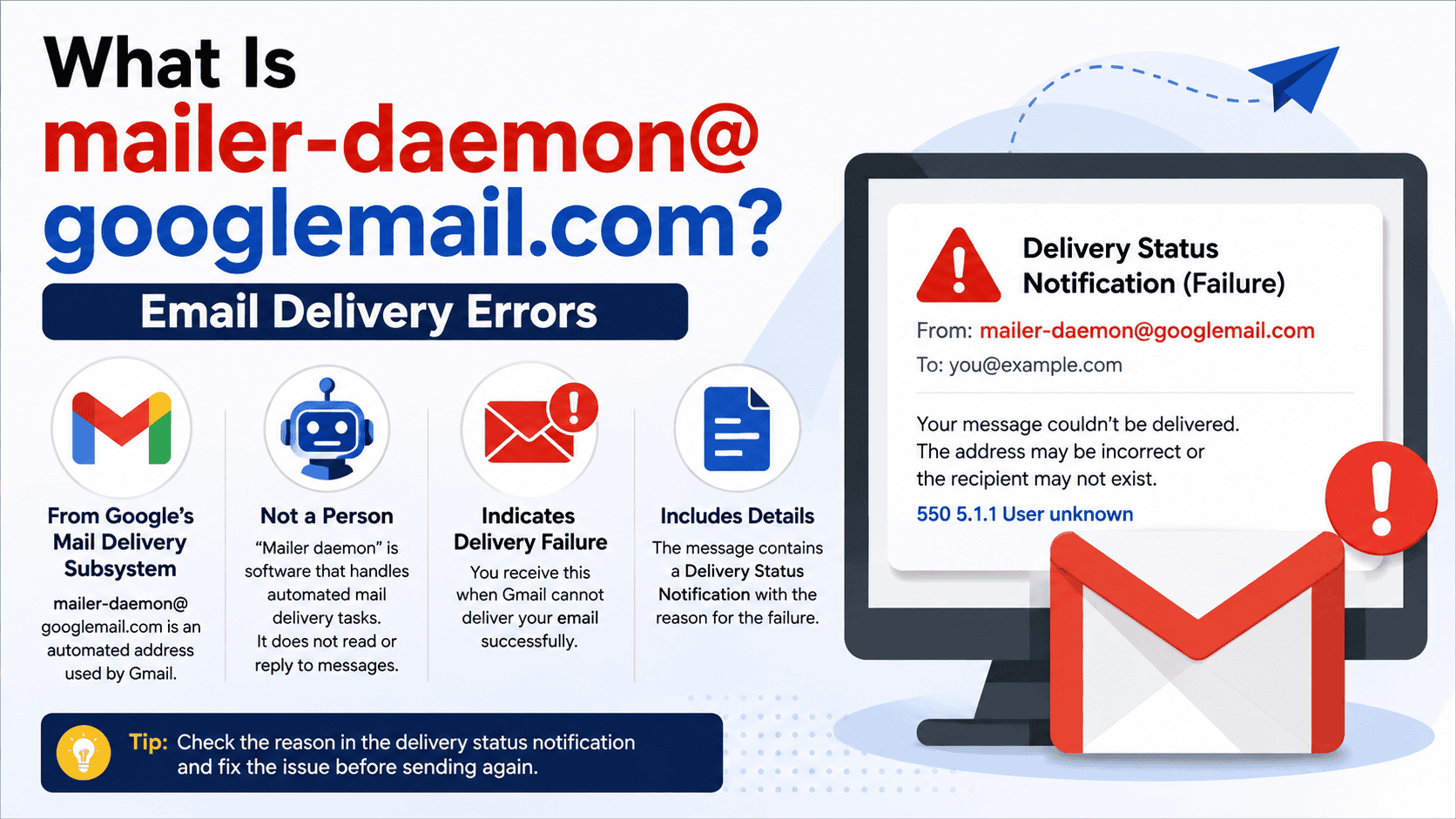
[email protected] is associated with Google’s Mail Delivery Subsystem. Gmail uses this automated system to tell senders when an email could not be delivered successfully. Google specifically lists [email protected] as an address that may appear on bounce notifications.
The term “mailer daemon” is used in email systems for software that handles automated mail delivery tasks. It is not a person who is reading or replying to your messages.
When Gmail cannot complete delivery, the system creates a delivery status notification. The message often includes a subject such as “Delivery Status Notification (Failure)” and provides information about the reason for the failure.
Is [email protected] a Real Google Address?
Yes. Google identifies [email protected] as the sender of automated Gmail bounce notifications. The address is used by the Mail Delivery Subsystem to report delivery problems.
This does not mean every email that appears to come from a familiar address should be trusted automatically. Email sender information can be forged through spoofing. Google explains that scammers can create messages that appear to have been sent from another address.
For a genuine Gmail delivery notification, check the message details and focus on the actual delivery error, the recipient address, and the technical information included in the bounce message.
Why Did I Receive an Email From [email protected]?
The most common reason is that an email you sent could not be delivered.
Gmail automatically sends a bounceback message when an outgoing email fails. The notification explains what happened and may identify the recipient or the server that rejected the message.
Common reasons include:
| Delivery problem | What it means |
|---|---|
| Wrong email address | The recipient address does not exist or contains a typo |
| Full inbox | The recipient has no available storage |
| Temporary server problem | The receiving system is unavailable or having trouble |
| Spam rejection | The recipient’s email provider rejected the message as suspicious |
| Sending limit | The sender reached a Gmail sending limit |
| Blocked content | The message or links may have triggered security rules |
| Recipient settings | The receiving system may not allow the message |
Google lists several of these situations as common reasons for bounced or rejected messages.
What Does a Mail Delivery Subsystem Message Mean?
A Mail Delivery Subsystem message is an automated report about an email delivery attempt.
It does not necessarily mean Gmail itself is broken. In many cases, Gmail is correctly reporting that another email system refused, could not receive, or could not process the message.
For example, the receiving server may reject an email because the address does not exist. Another possibility is that the recipient’s mailbox is full or the recipient’s email system is temporarily unavailable.
The bounce message is therefore important because it contains the information needed to identify the actual problem.
Common [email protected] Error Messages
The exact wording of a delivery error can vary. The most useful part is usually the explanation in the body of the bounce message.
“The email account that you tried to reach does not exist”
This usually means the recipient address is incorrect or no longer exists.
Check the entire address carefully. A single missing letter, extra space, incorrect domain, or spelling mistake can cause delivery to fail.
Google recommends checking for common address errors before trying again.
“Address not found”
“Address not found” generally points to a recipient address problem.
The mailbox may have been deleted, the address may have been entered incorrectly, or the domain may not recognize that mailbox.
Make sure the address is copied correctly and does not contain unnecessary spaces or punctuation.
“Message blocked”
A message can be blocked because the receiving provider considers the content suspicious or potentially harmful.
Large numbers of recipients, suspicious links, unusual content, or other security signals can contribute to rejection. Google notes that recipient providers may reject messages that appear to be spam or contain suspicious text or links.
“Message flagged as spam”
This means the receiving system has determined that the message may be spam.
This does not always mean the sender intentionally sent spam. Legitimate messages can also be filtered.
Review the content, links, attachments, and recipient list. When sending to many people, reduce unnecessary recipients and avoid content that may appear deceptive or misleading.
“Temporary problem”
A temporary delivery error can happen when the receiving server is unavailable or cannot accept the message at that moment.
In these cases, Gmail may retry delivery automatically. Google notes that temporary delivery issues can occur when a recipient’s system is having problems.
If the problem is temporary, waiting and trying again later may resolve it.
“You have reached a limit for sending email”
Gmail has limits related to sending email. When a sending limit is reached, messages may not be delivered until the restriction is cleared.
Google includes sending limits among the causes of bounced or rejected messages.
If the error mentions a sending limit, avoid repeatedly sending the same message and check whether your sending activity has been unusually high.
How to Read a [email protected] Bounce Message
A bounce message can look technical, but the important information is usually easy to find.
Look for these parts:
| Part to check | What to look for |
|---|---|
| Recipient | Confirm the email address is correct |
| Error message | Read the main reason for the failure |
| Error code | Look for numbers such as 550 or 5.7.x |
| Receiving server | Identify which system rejected or failed to accept the message |
| Temporary or permanent status | Determine whether Gmail may retry automatically |
| Suggested action | Follow the instructions included in the notification |
Google recommends opening the bounce message and reviewing the error text to understand why delivery failed.
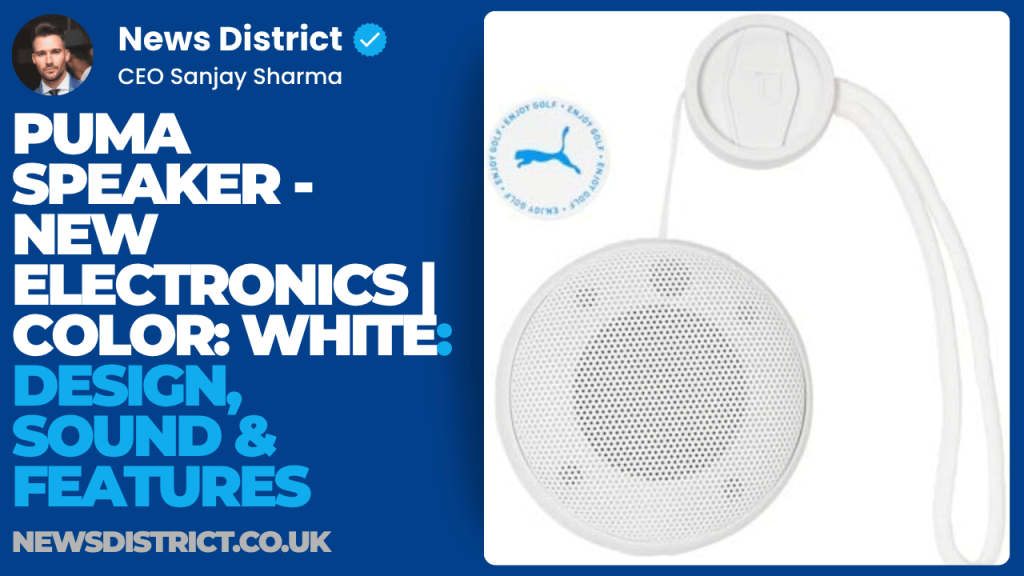
Puma Speaker – New Electronics | Color: White | Design, Sound & Features
The Puma PopTop Mini Bluetooth Speaker in Bright White is a compact wireless speaker designed for portable listening, especially for outdoor and golf use.
How to Fix a [email protected] Error
The correct fix depends on the error shown in the notification.
Check the Recipient’s Email Address
Start by checking the address character by character.
Look for:
- Misspelled names
- Incorrect domains
- Missing letters
- Extra spaces
- Incorrect punctuation
- Old addresses
- Addresses copied from outdated records
A single character can make an otherwise valid email address undeliverable.
Google specifically recommends checking the address for typing and formatting mistakes.
Confirm That the Mailbox Still Exists
If the address is correct, confirm that the recipient still uses it.
An old work address, expired account, deleted mailbox, or disabled account can produce a delivery failure.
Contact the recipient through another known method and confirm the correct address.
Wait for Temporary Problems to Clear
Not every bounce requires an immediate change.
A receiving server can have a temporary outage or connection problem. Gmail may retry some temporary delivery attempts automatically.
Wait for the temporary problem to clear before sending repeated copies of the same message.
Check the Message for Spam Triggers
When a message is rejected as suspicious, review the content.
Check for excessive links, misleading wording, unusual attachments, and large recipient lists. Google says recipient providers may block or reject messages that appear to be spam or contain suspicious content.
For business email, also make sure the sending domain is configured correctly and follows Google’s sender requirements.
Reduce Large Recipient Lists
Sending a message to a large number of people can increase the chance of filtering or rejection.
Google identifies large recipient groups as one possible reason for rejection in some cases.
For bulk communication, use a service designed for newsletters, transactional email, or group messaging rather than sending a large campaign through a normal personal mailbox.
Check for Gmail Sending Limits
If the bounce message says you reached a sending limit, stop sending additional messages for the moment.
Review your recent activity and make sure your account has not been used for unusually large volumes of email.
If you send email for a business or organization, use a suitable email platform that supports your required sending volume and authentication settings.
What If I Get [email protected] Messages for Emails I Never Sent?
This situation can be confusing.
Receiving a delivery failure does not automatically mean that someone has gained access to your Gmail account.
Google explains that spammers can spoof an email address. In this situation, a spammer may use your address as the apparent sender even though the message was created somewhere else. As a result, you may receive bounce messages for emails you never actually sent.
Check Your Sent Folder
First, review Sent Mail.
If the suspicious message does not appear there, it may not have been sent through your Gmail account.
Also check your Gmail account activity and security settings if you notice repeated or unusual messages.
Review Your Account Security
If you see messages in Sent Mail that you did not create, treat the situation as a possible account security issue.
Change your password and review your account security information. Google also recommends following its security checklist when unauthorized messages appear to come from your account.
Report Suspicious Messages as Spam
If the bounce messages appear to be connected to spam or spoofing and you did not send the original emails, Google recommends reporting the related unwanted messages as spam.
Does [email protected] Mean My Account Was Hacked?
Not necessarily.
A bounce message can happen because of a simple typing mistake, a nonexistent recipient, a full mailbox, a temporary server issue, or a rejected message.
It becomes more concerning when you see other signs of unauthorized activity, such as:
- Messages in Sent Mail that you did not write
- Unexpected account changes
- Unknown devices or sessions
- Unfamiliar forwarding rules
- Security alerts you do not recognize
A delivery failure by itself is not enough to prove that your account was compromised.
Can I Reply to [email protected]?
No. It is an automated delivery address, not a normal support mailbox.
The useful action is to read the bounce notification and follow the instructions shown there.
Sending a reply to the automated address will not normally solve the delivery problem.
Does a mailer-daemon Message Mean the Email Was Not Delivered?
Usually, a failure notification means the message was not successfully delivered to the recipient identified in the bounce report.
However, email systems can have complex delivery paths. Some messages can be delivered to one recipient while failing for another, especially when several recipients are included.
Google advises checking the exact bounce notification to determine which recipient failed and why.
This is especially important when an email was sent to multiple addresses.
Why Did I Get a Bounce After the Email Seemed to Send?
An email appearing in your Sent folder does not guarantee that the recipient’s mailbox accepted it.
The initial sending step and final delivery are different parts of the email process.
Gmail may successfully submit the message for delivery, but the recipient’s mail server can later reject it. The resulting notification can then arrive in your inbox as a delivery failure.
Google notes that users may receive an automated bounce message after Gmail determines that delivery could not be completed.
What Do Gmail Error Codes Mean?
Technical error codes can provide useful clues.
Some delivery failures contain codes beginning with numbers such as 4 or 5.
In general, temporary failures are associated with retryable conditions, while permanent failures usually indicate that the message cannot be delivered in its current form or to that destination.
The exact meaning depends on the complete response from the receiving mail server. Do not rely on the number alone. Read the full error text in the bounce message.
For example, a detailed rejection can explain whether the issue involves the recipient address, spam filtering, authentication, or another policy.
How to Handle a Temporary Email Delivery Failure
A temporary failure does not always require a permanent change to the recipient address or your email account.
Use this approach:
- Read the full bounce message.
- Check whether the error says the problem is temporary.
- Confirm that the recipient address is correct.
- Avoid sending repeated messages immediately.
- Wait and allow Gmail to retry when appropriate.
- Try again later if the message remains undelivered.
Google’s Gmail guidance notes that some temporary delivery problems can resolve after the receiving system becomes available again.
How to Handle a Permanent Email Delivery Failure
A permanent failure usually requires a change before another attempt can succeed.
Check the following:
| Possible cause | Recommended action |
|---|---|
| Incorrect address | Correct the recipient address |
| Deleted mailbox | Ask the recipient for a current address |
| Blocked message | Review message content and links |
| Spam rejection | Reduce suspicious or promotional elements |
| Sending limit | Stop sending temporarily and review account activity |
| Recipient policy | Ask the recipient’s mail administrator for help |
The error message should determine which action you take.
What If Gmail Sends the Message but the Recipient Does Not See It?
Not every delivery problem produces a visible failure message.
The email may have reached the recipient’s mail system but been placed in Spam or another filtered folder. Google recommends asking the recipient to check Spam or Junk and add the sender to their contacts if appropriate.
A missing response also does not prove that an email failed.
Check your Sent folder first. Then verify the recipient address and ask the recipient to search their inbox, Spam folder, and other mail categories.
Email Delivery Errors for Business Senders
Businesses that send email to personal Gmail accounts need to pay closer attention to email authentication, sending practices, and message quality.
Google maintains separate sender guidance for organizations and companies that send to personal Gmail accounts using @gmail.com or @googlemail.com addresses.
Business senders should make sure their email systems are properly configured and should monitor bounce rates and rejection messages.
A repeated delivery problem can be a sign of incorrect configuration, poor sending practices, or recipient-side filtering.
Vintage V132 Reissued Electric Guitar ~ TV Yellow | Features, Sound & Review
The Vintage V132 Reissued Electric Guitar in TV Yellow is a single cutaway electric guitar with a mahogany body, mahogany neck, dual Wilkinson pickups.

Common Questions About [email protected]
Is [email protected] spam?
The address itself is used by Gmail’s Mail Delivery Subsystem for automated bounce notifications. A genuine delivery notification can come from this address.
However, any individual email should still be examined carefully because sender information can be spoofed.
Is [email protected] a virus?
No. The address itself is not a virus.
It is associated with automated email delivery notifications. The important question is why the notification was generated and whether the original message was actually sent by you.
Why do I keep getting mailer-daemon emails?
Repeated notifications can happen when messages repeatedly fail to reach a recipient.
They can also appear when someone spoofs your address and sends unwanted email that later produces delivery failures. Google confirms that spoofing can result in bounce messages for emails you never sent.
Should I delete mailer-daemon emails?
You can delete the notification after reviewing it.
Before deleting it, check the error message if you need to understand why the email failed.
Can mailer-daemon send me an email without me sending anything?
Yes.
This can happen with spoofing. A spammer may use your address as the apparent sender, causing another mail system to generate a bounce message back to you.
Why does the address say googlemail.com instead of gmail.com?
Google’s Gmail help documentation explicitly identifies [email protected] as the address used by the Mail Delivery Subsystem for bounce notifications.
The appearance of googlemail.com in this automated sender address does not by itself indicate that the notification is fake.
Can I stop mailer-daemon messages?
You cannot normally stop legitimate delivery notifications while still relying on Gmail to report failed deliveries.
To reduce repeated bounce messages, address the underlying cause. Correct bad recipient addresses, review sending activity, and investigate messages you did not send.
What should I do first when I receive one?
Open the notification and read the delivery error.
Check the recipient address, identify whether the failure is temporary or permanent, and follow the specific guidance in the message.
Google recommends starting with the bounce message because it contains the information needed to determine why delivery failed.
When to Contact the Recipient or Email Administrator
Contact the recipient when:
- The address appears correct but delivery continues to fail
- The recipient’s mailbox may be disabled
- Their organization may have blocked the message
- A company or school email system is rejecting your message
- The bounce message refers to recipient-side rules
If the message is being blocked by an organization, the recipient’s email administrator may need to review their mail system or filtering rules.
Google’s guidance notes that recipient providers can reject messages for policy, spam, server, or mailbox-related reasons.
When to Check Your Google Account Security
Review account security when bounce messages are connected to messages you genuinely did not send.
Pay particular attention to unexpected emails in Sent Mail, unfamiliar account activity, and changes to account settings.
If the original email was created outside Gmail through spoofing, changing your password alone will not stop the spammer from forging your address. Google explains that spoofing occurs outside Gmail and that Gmail cannot directly prevent someone from using a forged sender address.
The Most Important Things to Remember
[email protected] is primarily associated with Gmail’s Mail Delivery Subsystem and automated delivery failure notifications.
A message from this address does not automatically mean your Gmail account has been hacked.
The best way to diagnose the problem is to read the full bounce message, verify the recipient address, and identify the exact error reported by Gmail or the receiving mail server.
For repeated failures, the solution depends on the cause. It may be as simple as correcting an email address, waiting for a temporary server issue to clear, changing message content, or investigating a possible spoofing problem.
